
Ringside Rally: AKC Edition
The Signs Tab
The Signs tab opens to every AKC Rally sign, all levels, in one long scrollable list.
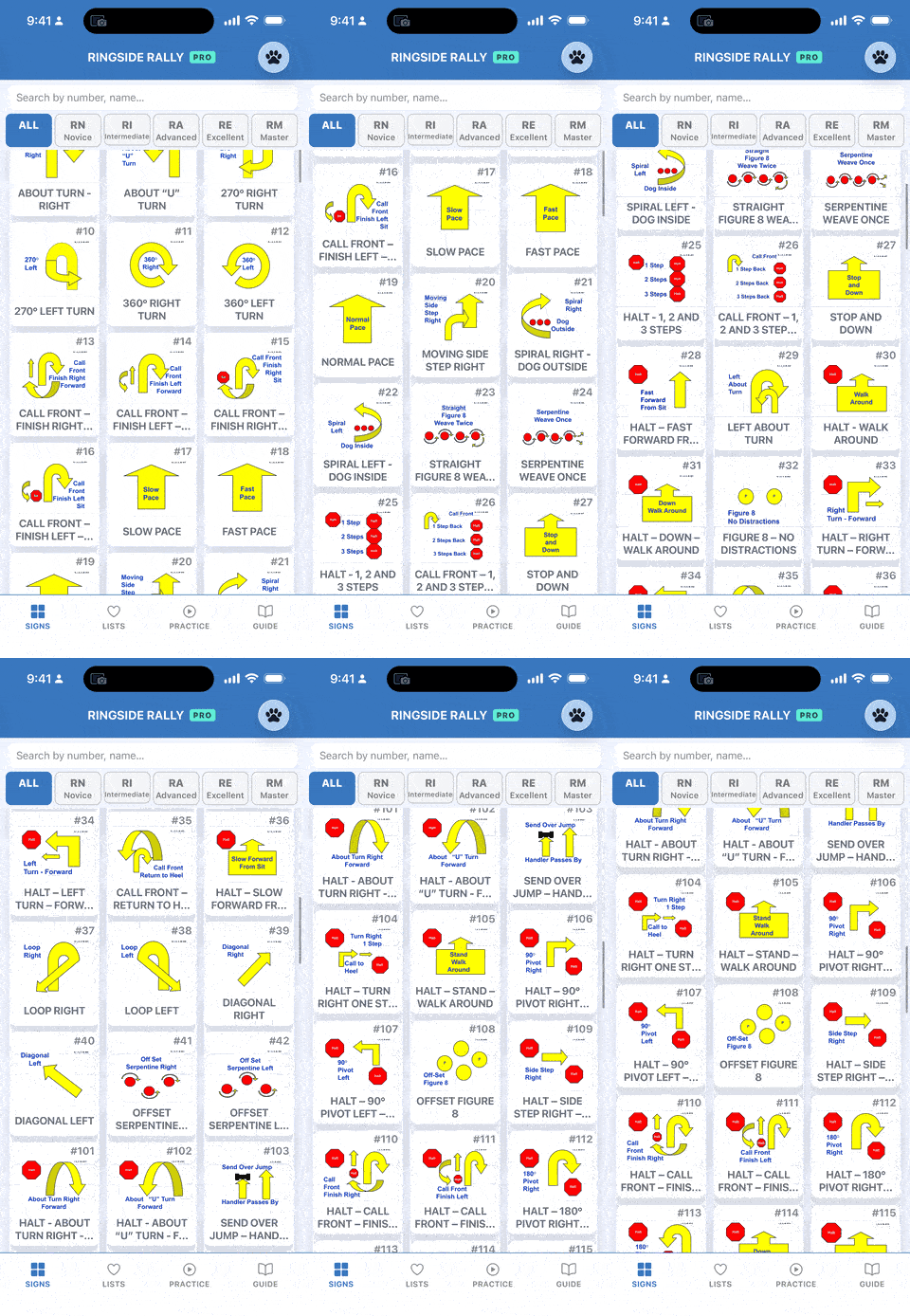
The Signs tab: every sign, every level, in one place.
A row of chips runs along the top: All, Novice, Intermediate, Advanced, Excellent, Master. Tap one and the list drops to just the signs used at that level. Each level has its own set:
- Novice: signs 1 through 42
- Intermediate: 101 through 123, minus the jump (sign 103)
- Advanced: 101 through 123, jump included
- Excellent: 201 through 216, plus 298 and 299
- Master: 301 through 322
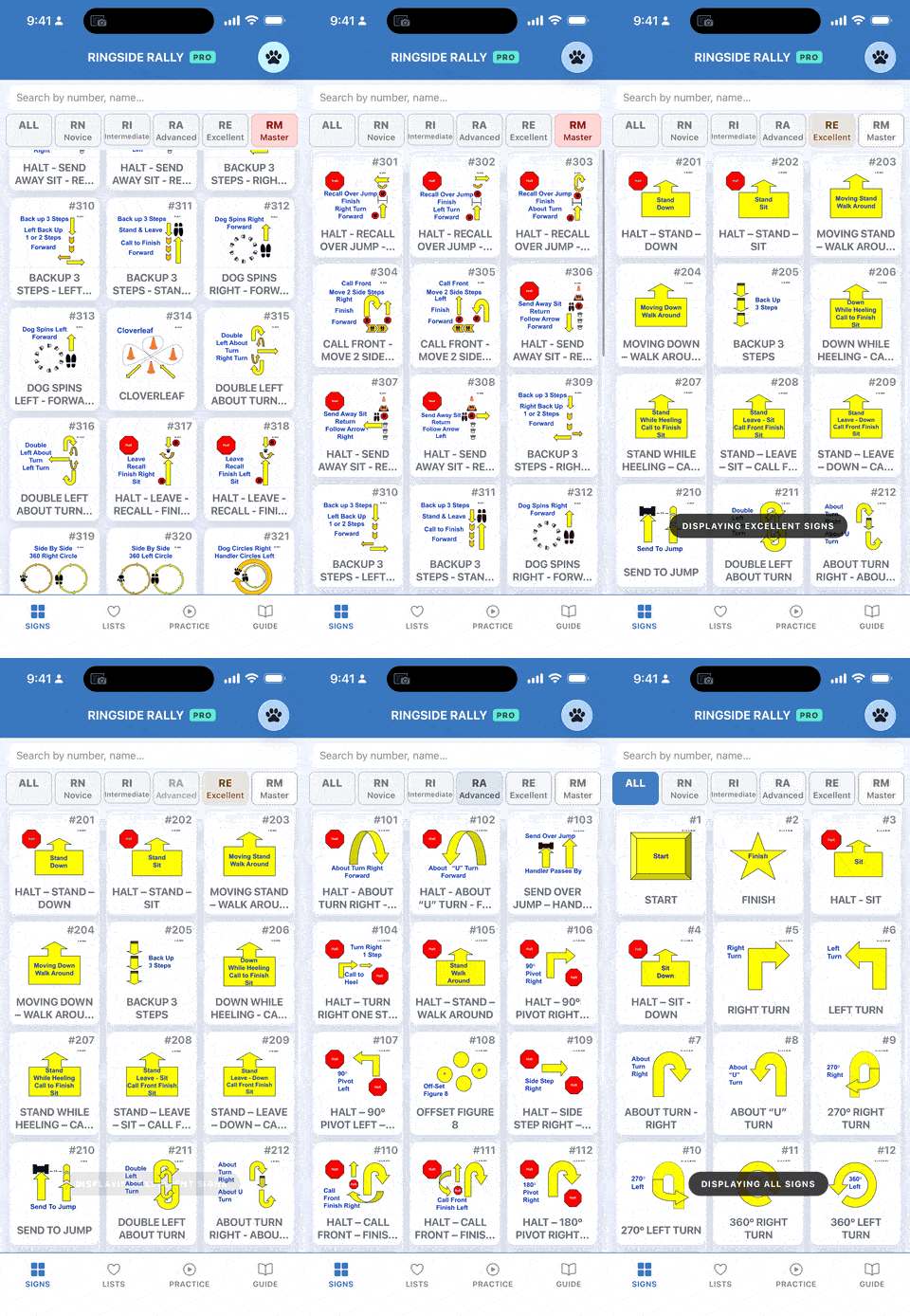
Tap a level chip to show only the signs that appear at that level.
The search bar looks at more than just names. Type a sign number, part of its name, or a keyword that describes what the dog actually does, and the list narrows as you go. So “270” works, “about turn” works, and so does something looser like “pivot” or “halt.” If a sign has slipped your mind but you remember the movement, just describe it.
Search and the level filter stack, by the way. Filter to Excellent, then search “left,” and you’ll see only the Excellent signs that match.
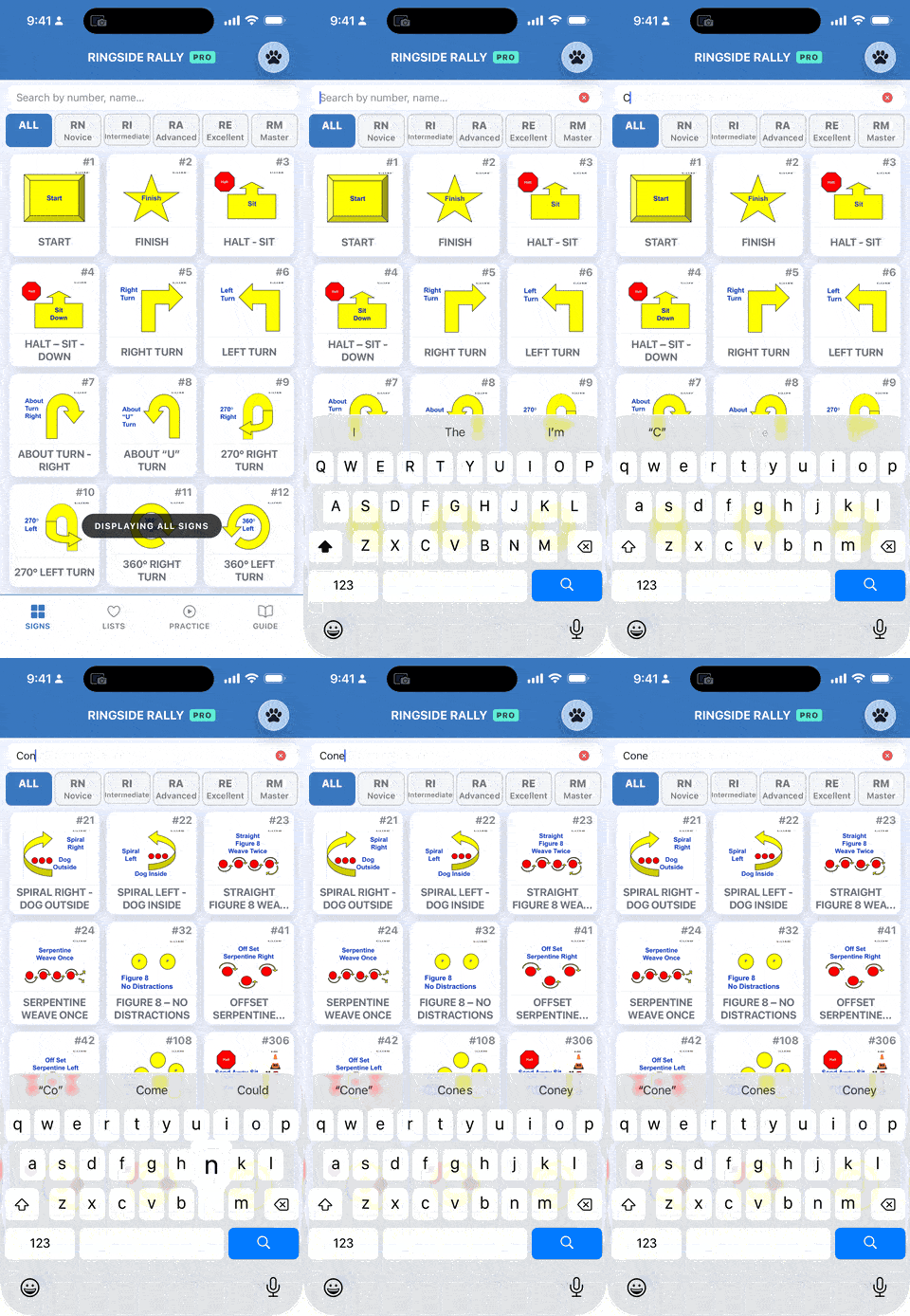
Type a number, a name, or a keyword and the list narrows as you go.
Tap any sign to see its details. The details screen will give you:
- The picture. The same sign you’ll see posted on the course.
- Which levels it belongs to. Badges showing every level the sign appears in, so you know where it can turn up.
- The full description. This is the official wording, taken straight from the AKC Rally handbook, with the principal part bolded and underlined exactly as it reads in the manual. Whenever the handbook changes, this gets updated to match.
- STATIONARY EXERCISE and REPEATABLE markers, when they apply. The first tells you the sign is performed in place. The second flags a sign you might see repeated on a course.
The Video tab only appears when that particular sign has a demonstration video.
See the heart icon in the top right corner? Tap it and a sheet slides up letting you add that sign to one or more of your lists.
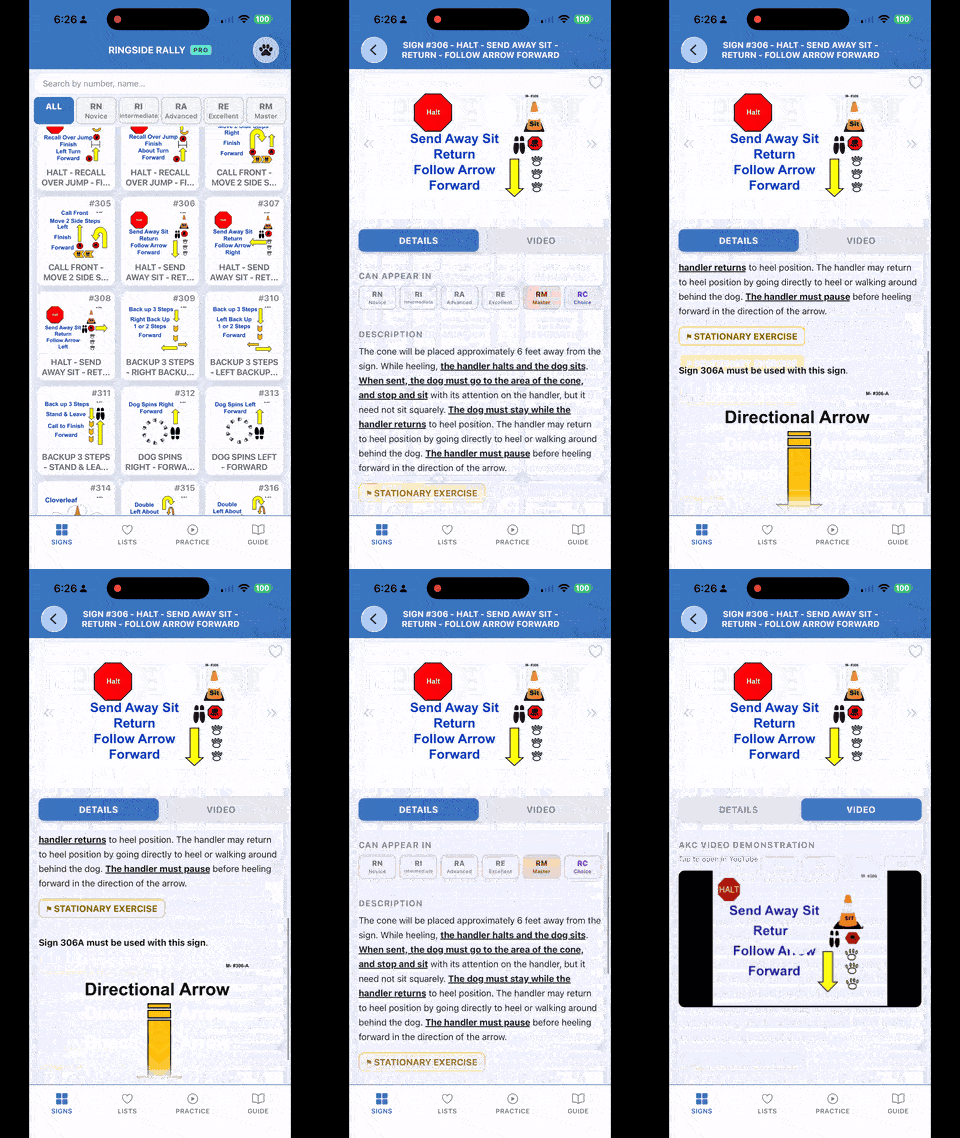
A sign’s Details tab: picture, the levels it appears in, and the full write-up.
Press and hold any sign in the list and a sheet slides up. From there you can add it to one or more of your lists without opening the sign at all.
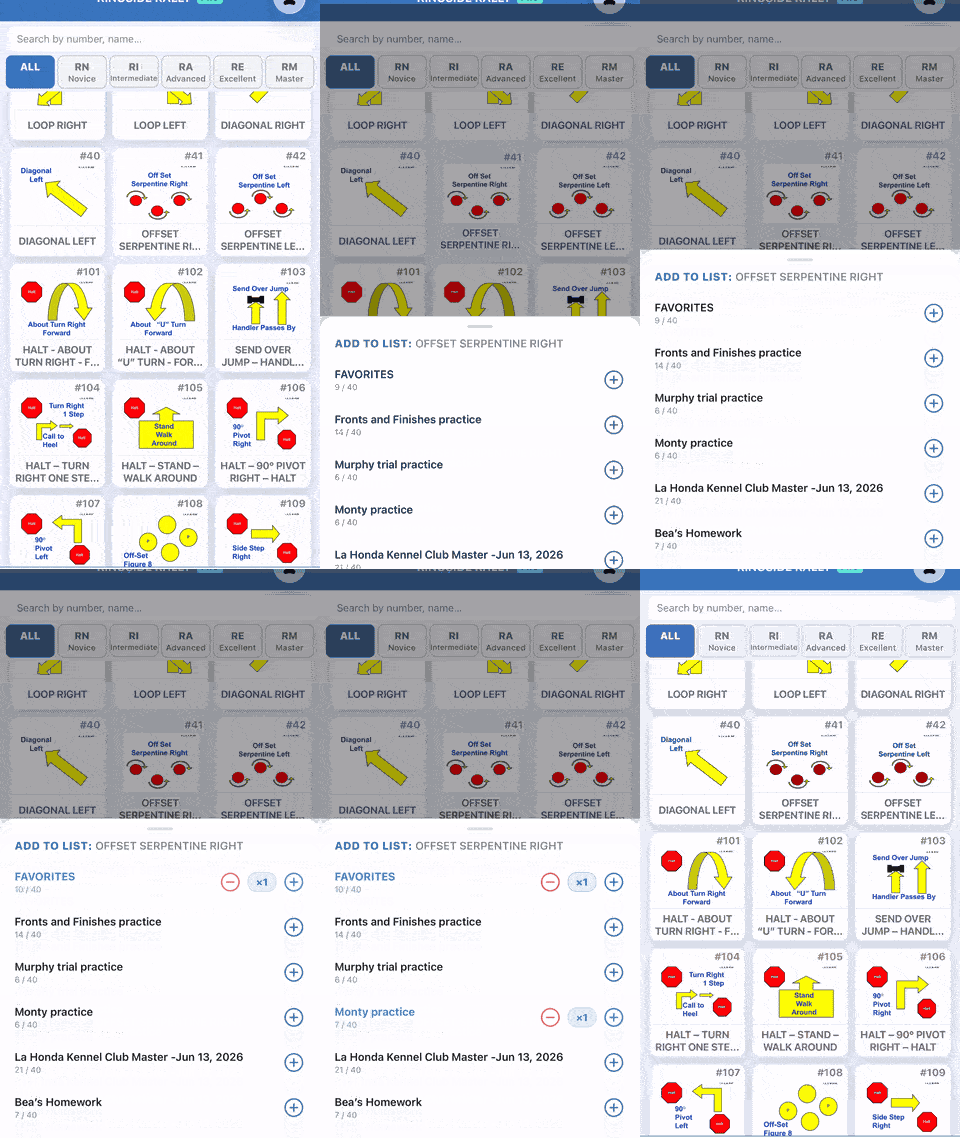
Press and hold any sign to add it to one or more lists.
On the free version, the only list you can have is Favorites, so that’s all you’ll see in the sheet. Pro users will see all their lists.
Free and Pro users have access to the exact same Signs tab. Every sign, every description, every level badge is available to everyone.
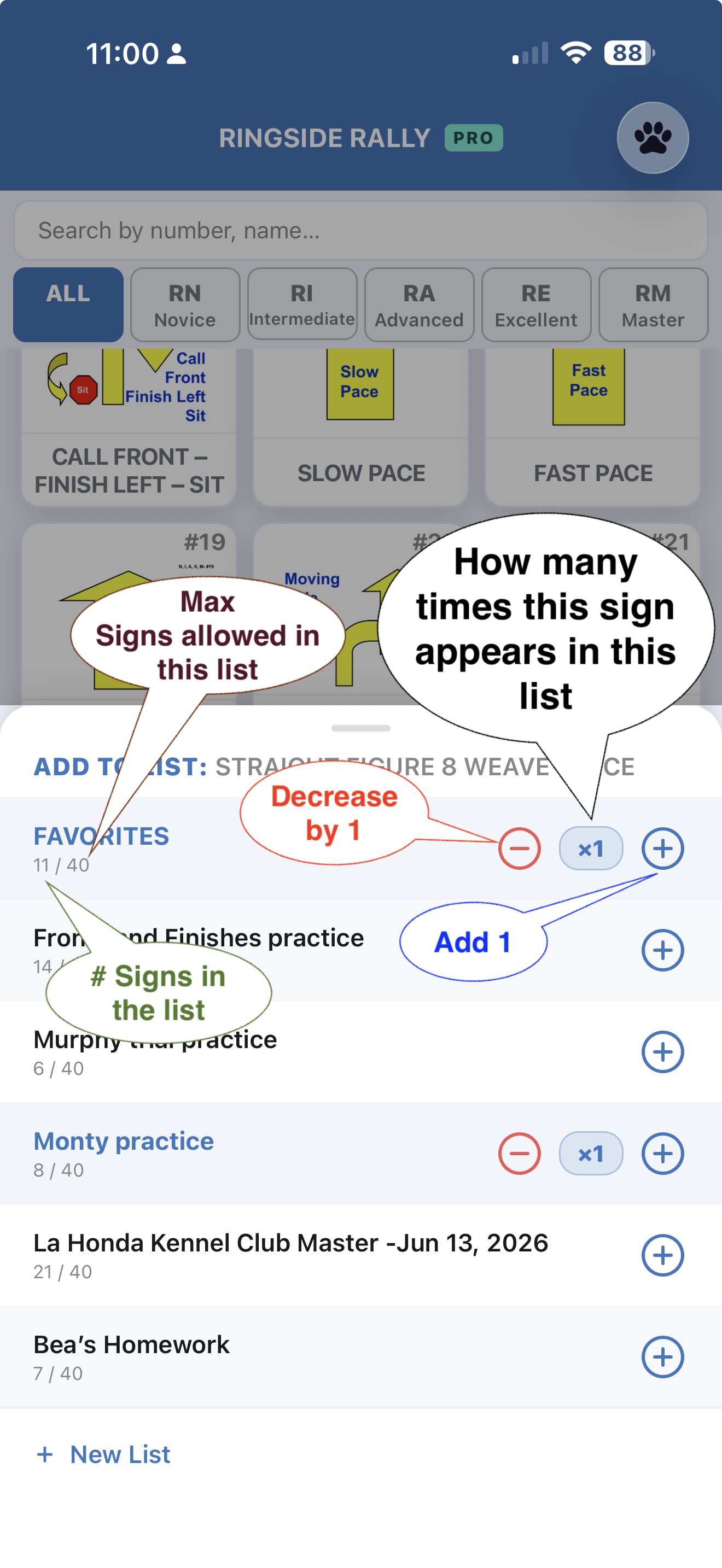
The only difference shows up when you go to add a sign to a list. Free users see Favorites. Pro users see all their lists, with control over how many lists they can have and how many signs each list can hold. That’s all covered in the Lists guide.
Got an idea? Something feels off? Love something?
I’d love to hear from you!